

Are you unable to open .accdb files and facing random errors, such as ‘Microsoft Office Access has detected corruption in the file,’ ‘unrecognized database format,’ etc. Generally, such errors are the result of corruption in the Access database (.accdb) files. There are various reasons that can lead to corruption in the database files. Read this post to learn the causes behind .accdb file corruption and the troubleshooting methods to repair the file. You’ll also learn about an advanced access database recovery tool that can repair the Access database file easily and quickly.
What Causes Corruption in ACCDB Files?
The ACCDB files can get corrupted due to the following reasons:
- Interruption when doing changes to the database file
- Virus or malware attack
- Hardware failure
- Software bugs
- Faulty/incompatible add-ins
- Access application crash
- Large file size
- Sudden closing of the Access application
Methods to Repair and Recover Corrupt ACCDB File
Follow the methods mentioned below to repair and recover corrupt ACCDB files.
Method 1: Restore from Backup
If your Access database (ACCDB) file is corrupted, the first thing you can do is to look for the backup file. If you have an updated backup file, then you can restore it and replace it with the affected file. Here’s how to do so:
· Open the File Explorer window on your system by pressing Windows + E.
· Locate the backup folder.
· Search for the backup file and then copy it.
· Paste the backup file at the location where the corrupted ACCDB file is saved.
· When you get a prompt to replace the existing file with the backup copy, click OK.
Method 2: Import the ACCDB File’s Objects into a New File
You can try to import the objects from corrupted .accdb file into a new database file. This can help you recover the objects, like forms, reports, macros, etc., from the damaged file. Following are the steps to import the objects from the affected .accdb file into a new file:
· Open your Access application.
· Click the External Data option and then click the option – Import Access Database.
· In the Get External Data – Access Database window, click on the Browse option to select the affected .accdb file.
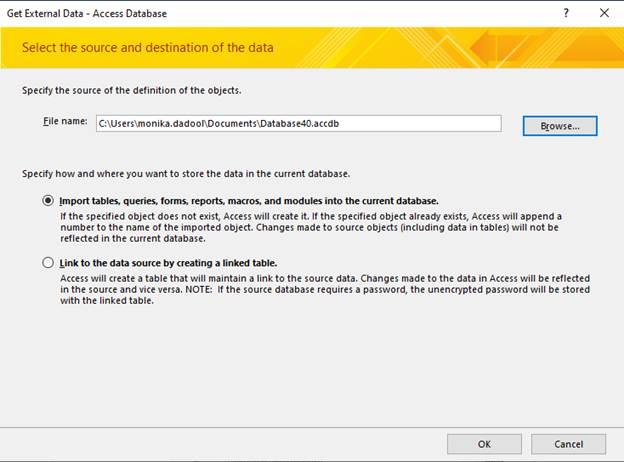
· In the same window, choose the “Import tables, forms, reports, macros, and modules into the current database” option.
· Now, click on the objects you want to import into the new database file. Click OK.
Method 3: Repair ACCDB File using MS Access’ Built-in Utility
Microsoft Access has an inbuilt utility, called Compact and Repair, to repair Access database files. It can resolve minor corruption issues in the ACCDB file. To use this inbuilt utility, follow the steps below:
· Open MS Access and double-click on Blank Database.
· Click File and then select Close.
· On blank database, click on File > Database Tools and then click Compact and Repair Database.
· Click on the corrupted database file (ACCDB) you want to repair and then click Compact.
· Wait for a few minutes till the repair process is finished.
You can check the repaired .accdb file at the same location where the original file is saved.
Method 4 – Use a Third-Party Access Database Repair Tool
If the Compact and Repair utility didn’t repair your database file, then you can use a third-party Access database recovery tool. Stellar Repair for Access is one such powerful DIY tool that can repair Access database files in just a few steps. It can recover all the objects, like tables, reports, forms, queries, and even deleted records from the corrupt database file. The tool allows you to preview all the recoverable database objects before saving them.
Some prominent advantages of Stellar Repair for Access are:
· It can repair damaged .ACCDB/.MDB files with complete integrity.
· It can repair and recover password-protected forms and modules from the Access database file.
· It allows you to preview all the recoverable objects, like tables, queries, reports, macros, etc., in the database.
· It can repair split Access database.
· It supports Office 365, Access 2019, and earlier versions.
Conclusion
If your ACCDB file is corrupted, you can restore it from the backup. If you don’t have backup, then use the Access built-in tool – Compact and Repair, to repair the file. If corruption in the database file is severe, then the Compact and Repair tool may fail to repair the ACCDB file. In such a case, use an advanced Access database file repair tool, such as Stellar Repair for Access. It can recover all the components from the Access database file with complete data integrity. You can free download Stellar Repair for Access to evaluate its functionality.